
Progressive Web Apps: A Deep Dive
What is a Progressive Web App?
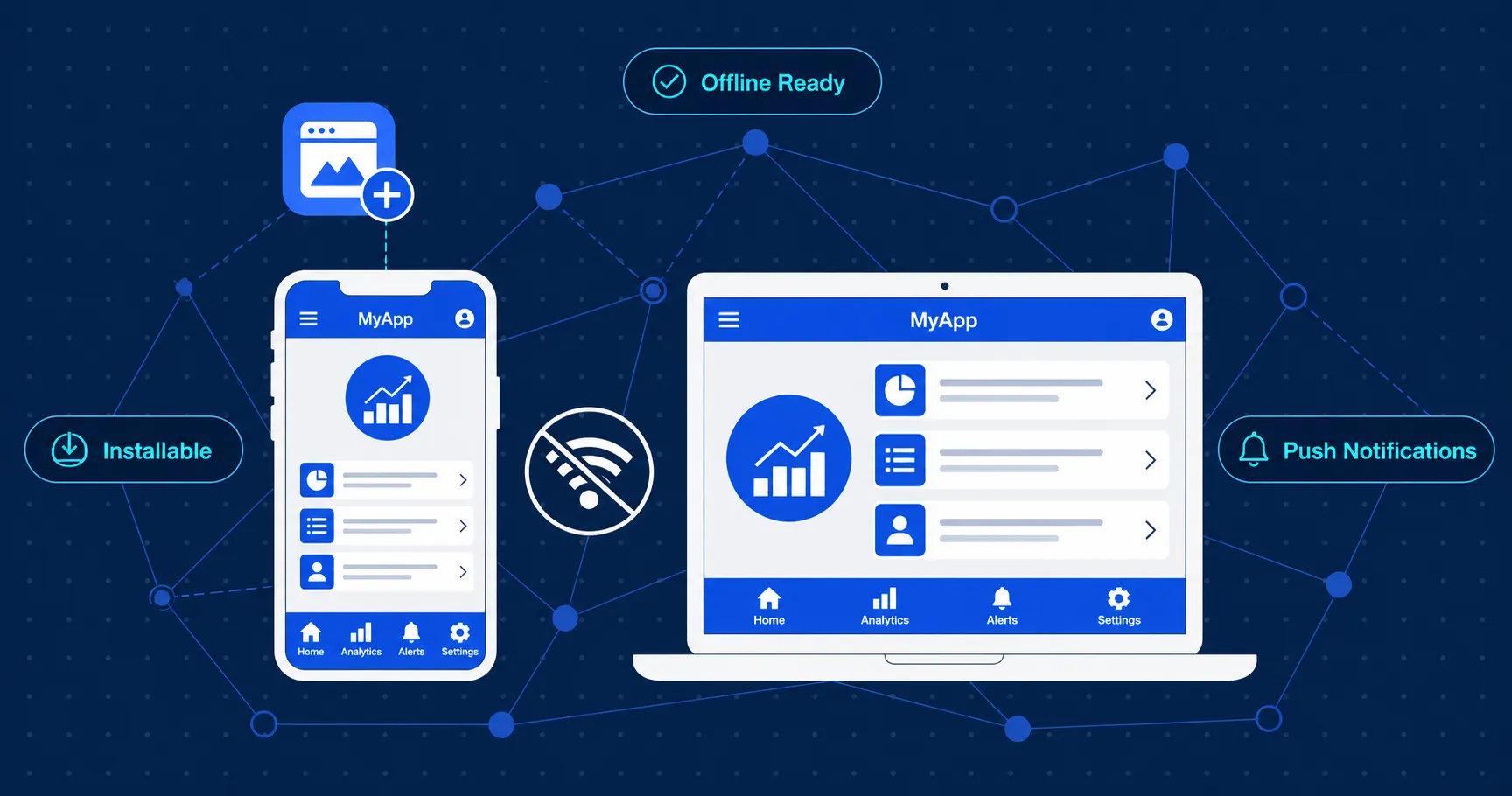
You have almost certainly used one without knowing it. Twitter, Spotify, Starbucks, Pinterest, Uber, and Google Maps all ship Progressive Web Apps. On a fast connection they feel like any other website. On a slow connection, or with no internet at all, they still work. On a phone, you can install them to your home screen and they open like a native app, full-screen, with no browser chrome.
A Progressive Web App (PWA) is a web application that uses a specific set of browser APIs to deliver an experience that feels native: installable, offline-capable, fast, and able to receive push notifications. The key word is "progressive": these features enhance the experience for users whose browsers and devices support them, without breaking the experience for anyone else.
PWAs are not a single technology. They are a combination of three core ingredients working together:
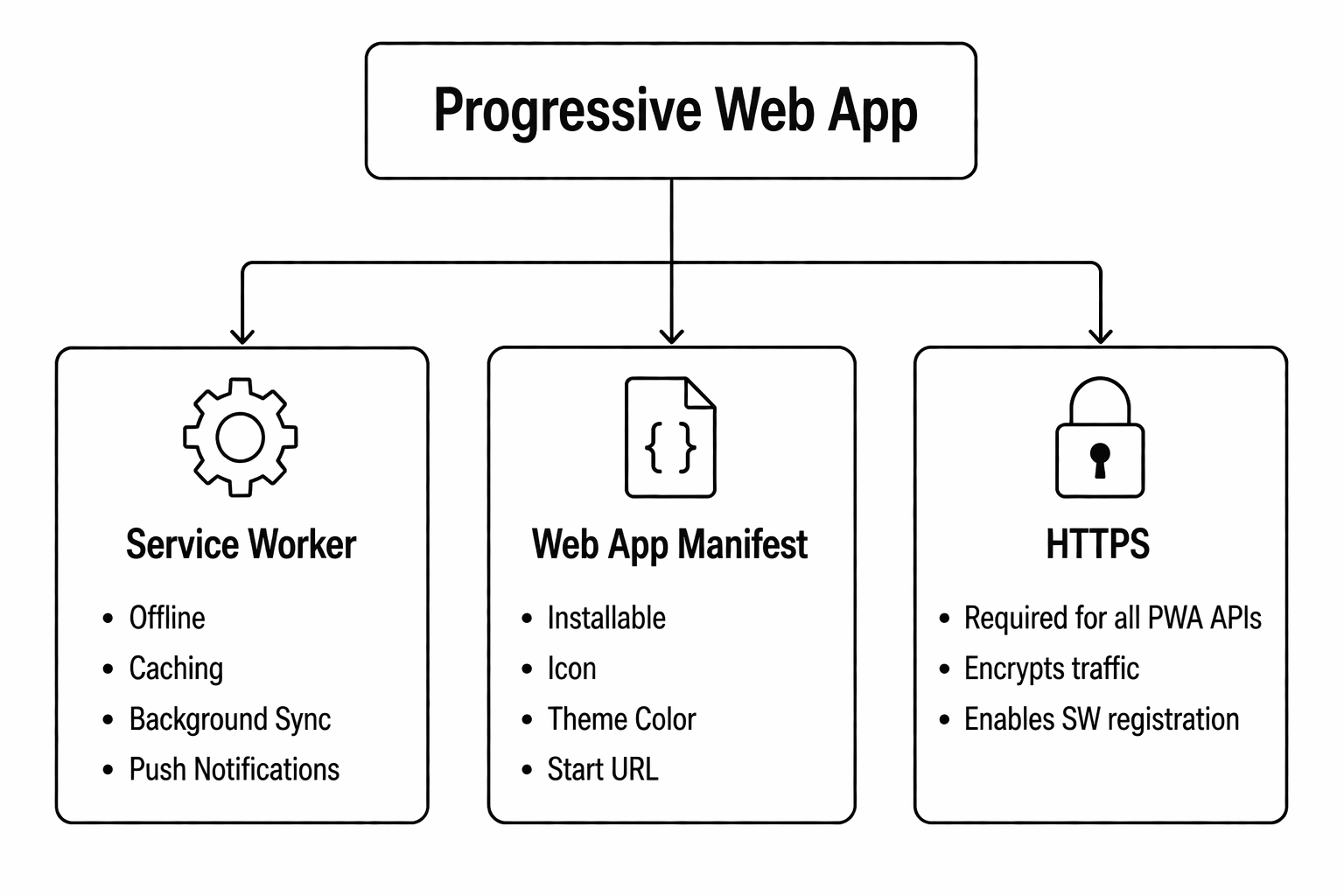
This post is a complete technical walkthrough of all three, plus the supporting APIs that make PWAs powerful. We will go from the theory to working code.
Why PWAs Exist: The Problem They Solve
Before diving in, it helps to understand what gap PWAs fill.
Native apps (iOS and Android) have genuine advantages: they work offline, they can send push notifications, they load from the home screen instantly, and they can access device hardware. But building native requires separate codebases (Swift/Kotlin), separate distribution (App Store/Play Store), separate approval processes, and significant expertise.
Web apps have their own advantages: one codebase, instant updates (no app store review), discoverable via search, linkable with a URL, and zero installation friction. But traditionally they required a network connection and could not be installed or send push notifications.
PWAs close that gap. They let you write once (HTML, CSS, JavaScript) and get most of the benefits of both worlds.
The business case is clear. When Pinterest built their PWA:
- Time spent on site increased 40%
- User-generated ad revenue increased 44%
- Core engagements increased 60%
When Twitter built Twitter Lite (their PWA):
- 65% increase in pages per session
- 75% increase in tweets sent
- 20% decrease in bounce rate
Pillar 1: HTTPS (The Non-Negotiable Foundation)
Before anything else: PWAs require HTTPS. Not optional.
Service workers (which we will get to) can intercept all network requests your page makes. If a malicious actor could inject a service worker over an unencrypted connection, they could hijack every request your users make. HTTPS prevents this.
In practice this is rarely a blocker. Let's Encrypt provides free TLS certificates, and most hosting platforms (Vercel, Netlify, Cloudflare Pages) provide HTTPS automatically.
During development,
localhostis treated as a secure origin. You can test all PWA features locally without a certificate.
Pillar 2: The Web App Manifest
The Web App Manifest is a JSON file that tells the browser everything it needs to know to install your app: its name, icons, colors, and how it should open.
A Complete Manifest File
{
  "name": "Clarity App",
  "short_name": "Clarity",
  "description": "Design, development, and marketing that converts.",
  "start_url": "/",
  "scope": "/",
  "display": "standalone",
  "orientation": "portrait-primary",
  "background_color": "#ffffff",
  "theme_color": "#1e3a5f",
  "lang": "en-US",
  "dir": "ltr",
  "icons": [
    {
      "src": "/icons/icon-72x72.png",
      "sizes": "72x72",
      "type": "image/png",
      "purpose": "maskable any"
    },
    {
      "src": "/icons/icon-192x192.png",
      "sizes": "192x192",
      "type": "image/png",
      "purpose": "maskable any"
    },
    {
      "src": "/icons/icon-512x512.png",
      "sizes": "512x512",
      "type": "image/png",
      "purpose": "maskable any"
    }
  ],
  "screenshots": [
    {
      "src": "/screenshots/desktop.png",
      "sizes": "1280x720",
      "type": "image/png",
      "form_factor": "wide"
    },
    {
      "src": "/screenshots/mobile.png",
      "sizes": "390x844",
      "type": "image/png",
      "form_factor": "narrow"
    }
  ],
  "shortcuts": [
    {
      "name": "New Project",
      "short_name": "New",
      "description": "Start a new project",
      "url": "/projects/new",
      "icons": [{ "src": "/icons/new-project.png", "sizes": "96x96" }]
    }
  ],
  "categories": ["business", "productivity"],
  "prefer_related_applications": false
}
Link it from every HTML page in the <head>:
<link rel="manifest" href="/manifest.json" />
Key Manifest Fields Explained
display controls how the app opens when launched from the home screen:
display: "browser"     - opens in a regular browser tab (no PWA feel)
display: "minimal-ui"  - browser chrome, but minimal (back button, URL)
display: "standalone"  - looks like a native app (no URL bar)
display: "fullscreen"  - covers entire screen (games, media players)
For most apps, "standalone" is the right choice. It removes the browser chrome so the experience is indistinguishable from a native app.
start_url is the page that opens when the user launches the installed app. Always include a query parameter for analytics so you can measure installs: "start_url": "/?source=pwa".
scope defines which URLs are considered "inside" the app. If a user navigates outside the scope (e.g., clicks an external link), it opens in a browser tab instead.
theme_color sets the color of the browser address bar and the system status bar on Android. It should match your primary brand color.
icons need at minimum 192x192 and 512x512 PNG icons. The purpose: "maskable" variant tells the OS it can crop the icon into any shape (circle, rounded square, etc.) safely, because your content is inside a "safe zone" in the center.
The Maskable Icon Safe Zone
Android adaptive icons apply a mask to app icons. If your icon has important content at the edges, it will be clipped. The safe zone is the inner 80% of the icon:
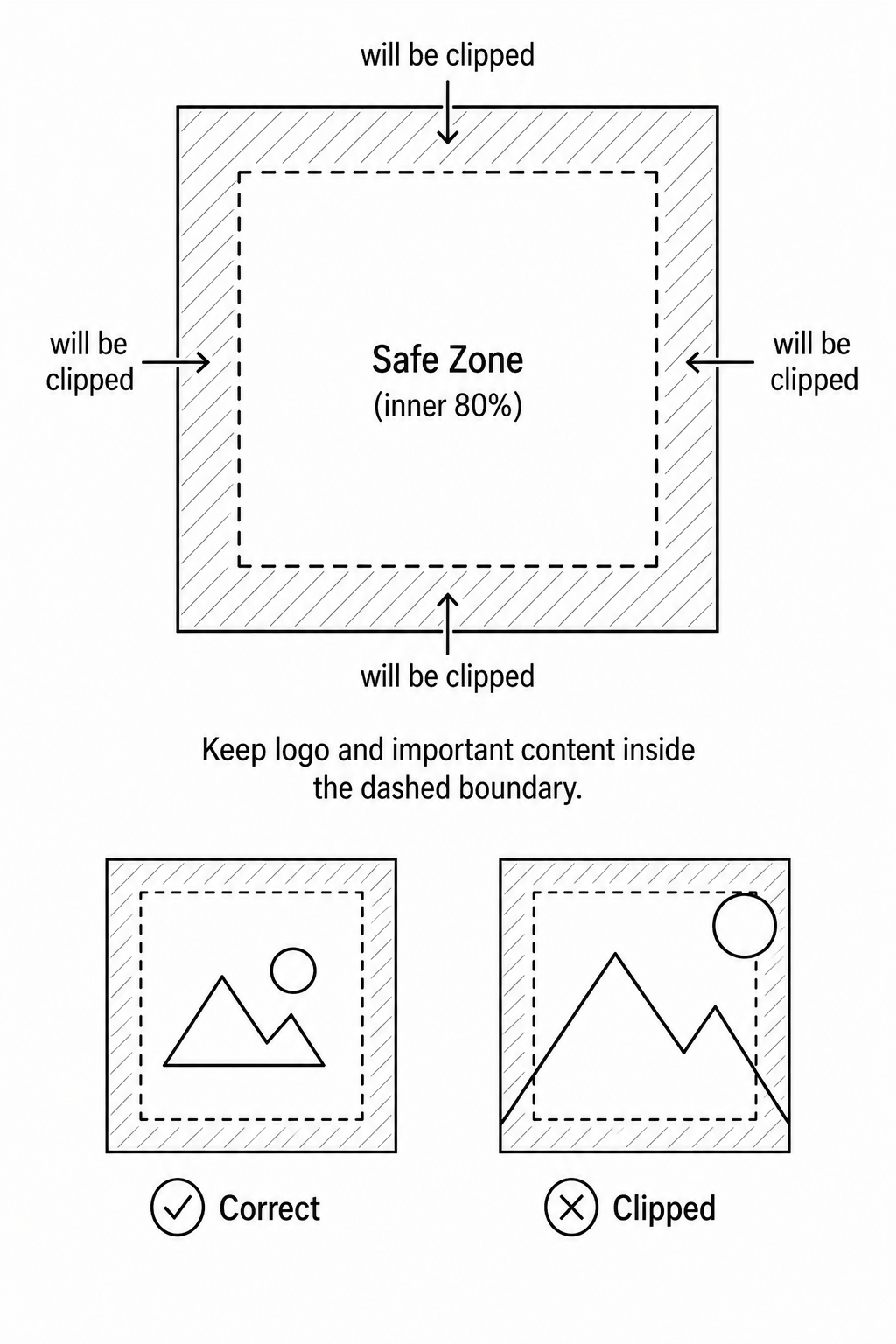
Keep your logo and important content within the safe zone. Use maskable.app to preview your icon against all Android mask shapes before shipping.
Pillar 3: The Service Worker
This is the heart of everything. A Service Worker is a JavaScript file that the browser runs in a separate background thread, completely separate from your web page. It has no access to the DOM. What it does have is the ability to intercept every network request your page makes and decide what to do with it.
The Service Worker Mental Model
Think of a service worker as a programmable network proxy sitting between your web page and the internet:
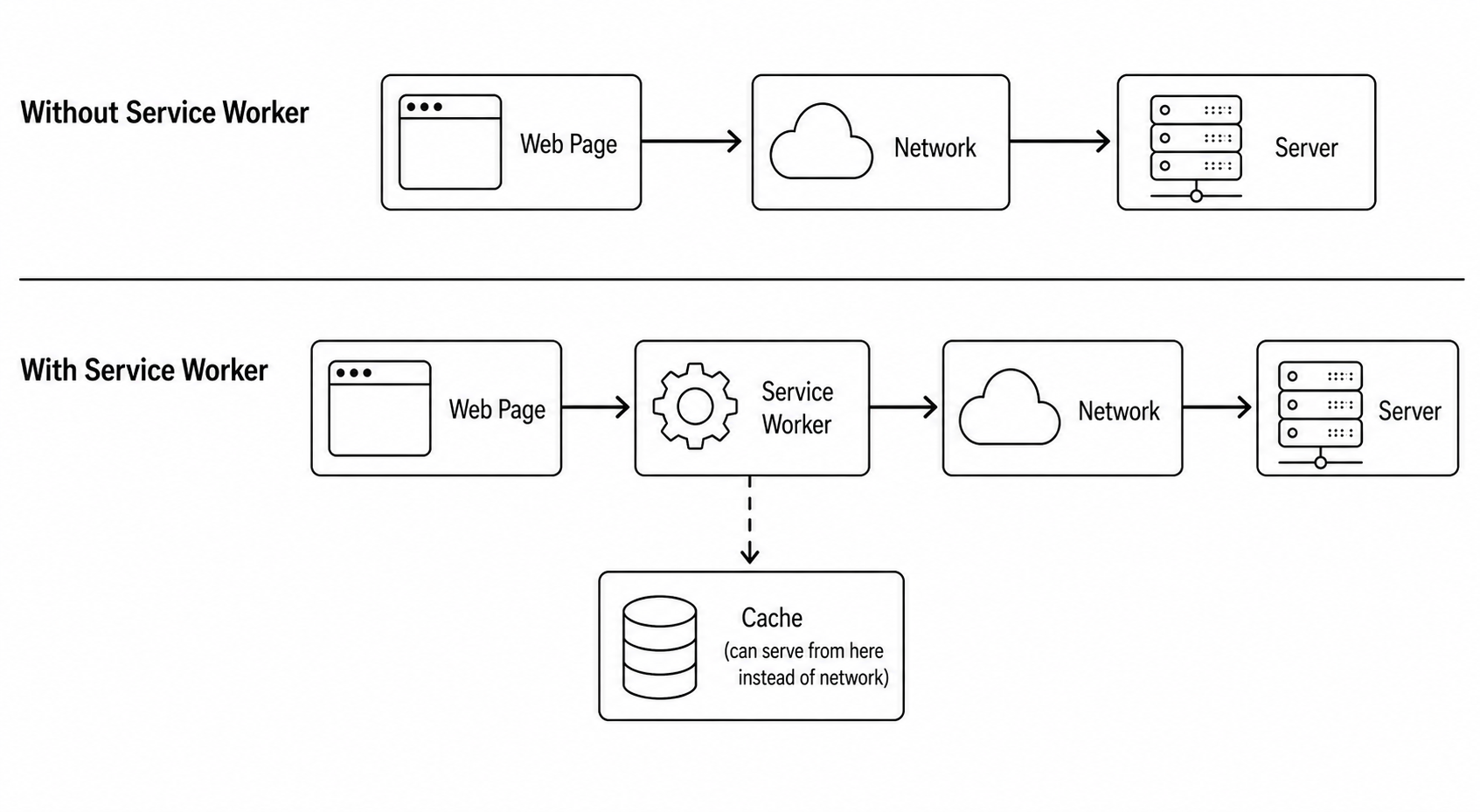
The service worker can:
- Serve responses from a local cache (offline support)
- Fetch from the network and update the cache in the background
- Intercept and modify requests before they hit the network
- Receive push notifications from a server (even when the page is closed)
- Run background sync tasks when connectivity is restored
Service Worker Lifecycle
Understanding the lifecycle is critical. Many PWA bugs come from misunderstanding when a service worker takes effect.
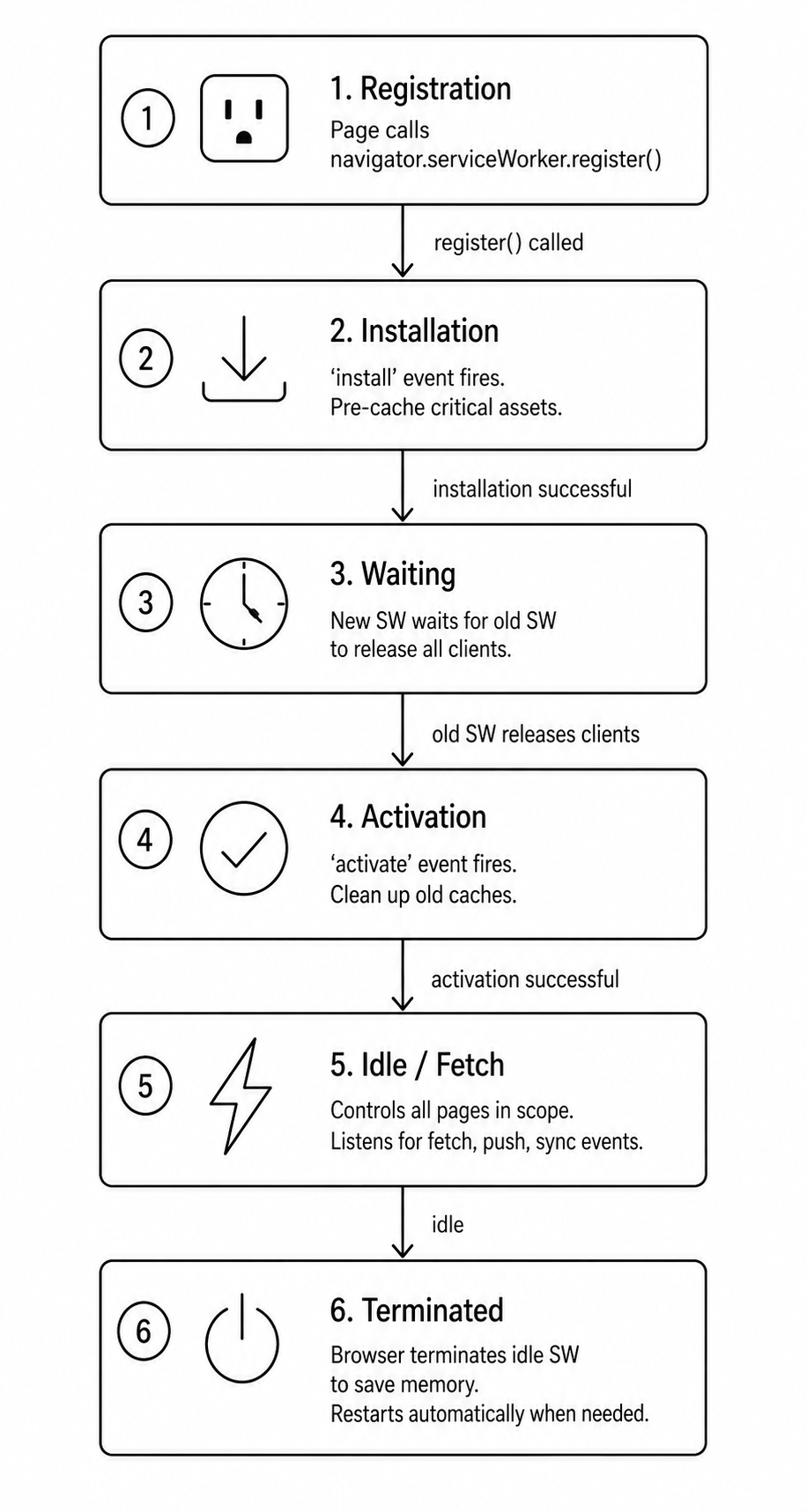
The "waiting" phase trips up many developers. You install a new service worker, refresh the page, and the new version seems to do nothing. This is by design. The old service worker is still controlling the page. Only when you close all tabs does the new one activate.
During development, use Chrome DevTools > Application > Service Workers > "Update on reload" to bypass this.
Registering a Service Worker
Registration happens from your main JavaScript file, not from the service worker itself:
// main.js (runs in the page, not in the service worker)

async function registerServiceWorker() {
  if (!('serviceWorker' in navigator)) {
    console.log('Service workers not supported');
    return;
  }

  try {
    const registration = await navigator.serviceWorker.register('/sw.js', {
      scope: '/'
    });

    registration.addEventListener('updatefound', () => {
      const newWorker = registration.installing;
      console.log('New service worker installing:', newWorker);
    });

    console.log('Service worker registered, scope:', registration.scope);
  } catch (error) {
    console.error('Service worker registration failed:', error);
  }
}

// Register after the page loads
window.addEventListener('load', registerServiceWorker);
The scope defaults to the directory containing the service worker file. A service worker at /sw.js controls all pages at /. A service worker at /blog/sw.js only controls pages under /blog/.
The Fetch Event: Intercepting Requests
The most important event in a service worker is fetch. Every network request from your page flows through it:
// sw.js

self.addEventListener('fetch', (event) => {
  // event.request is the original Request object
  // event.respondWith() lets you override the response

  event.respondWith(
    // Try the cache first, fall back to network
    caches.match(event.request).then((cachedResponse) => {
      if (cachedResponse) {
        return cachedResponse; // serve from cache
      }
      return fetch(event.request); // fall back to network
    })
  );
});
This is the simplest possible strategy: cache first, network fallback. But different resources need different strategies.
Caching Strategies
Choosing the right caching strategy for each type of resource is the most important design decision in a PWA. There is no single right answer. You mix and match strategies based on how often the content changes and how critical freshness is.
The Five Core Strategies
- Cache First (Cache Falling Back to Network): Check cache first. If found, serve it. If not, fetch from network, cache the response, then serve it. Best for static assets (JS, CSS, fonts, images with a content hash in the filename).
- Network First (Network Falling Back to Cache): Try the network first. If successful, cache the response and serve it. If the network fails, serve the stale cached version. Best for API responses and HTML pages that must be fresh.
- Stale While Revalidate: Serve from cache immediately (even if stale), and simultaneously fetch an updated version from the network in the background to refresh the cache for next time. Best for non-critical content where speed matters more than freshness (avatars, blog posts).
- Network Only: Always fetch from the network. Never cache. Best for analytics pings, POST requests, and payments.
- Cache Only: Serve exclusively from cache. Never touch the network. Best for assets pre-cached at install time as part of the app shell.
Strategy 1: Cache First
// sw.js
const STATIC_CACHE = 'static-v1';

self.addEventListener('fetch', (event) => {
  event.respondWith(
    caches.open(STATIC_CACHE).then(async (cache) => {
      const cached = await cache.match(event.request);
      if (cached) return cached;

      const response = await fetch(event.request);
      // Only cache successful responses
      if (response.ok) {
        cache.put(event.request, response.clone());
      }
      return response;
    })
  );
});
Notice response.clone(). A Response body can only be consumed once (it is a stream). If you cache.put() and then return the same response, the body will already be consumed and the page gets an empty response. Always clone before caching.
Strategy 2: Network First
// sw.js
const DYNAMIC_CACHE = 'dynamic-v1';

async function networkFirst(request) {
  try {
    const response = await fetch(request);
    if (response.ok) {
      const cache = await caches.open(DYNAMIC_CACHE);
      cache.put(request, response.clone());
    }
    return response;
  } catch (error) {
    // Network failed: try cache
    const cached = await caches.match(request);
    if (cached) return cached;

    // Nothing in cache either: return offline fallback
    return caches.match('/offline.html');
  }
}

self.addEventListener('fetch', (event) => {
  if (event.request.mode === 'navigate') {
    event.respondWith(networkFirst(event.request));
  }
});
Strategy 3: Stale While Revalidate
This strategy gives you the best of both worlds for most content: instant response from cache AND fresh data for next time.
// sw.js
async function staleWhileRevalidate(request) {
  const cache = await caches.open('swr-cache-v1');
  const cached = await cache.match(request);

  // Kick off a network fetch in the background regardless
  const networkFetch = fetch(request).then((response) => {
    if (response.ok) {
      cache.put(request, response.clone());
    }
    return response;
  });

  // Return cached immediately if available, otherwise wait for network
  return cached ?? networkFetch;
}
Pre-caching: The App Shell
The App Shell pattern is fundamental to PWAs. You identify the minimal set of assets needed to show a meaningful UI (your HTML skeleton, main CSS, core JS bundle, logo, fonts) and cache them at install time. The app shell should never change for a given version.
// sw.js
const APP_SHELL_CACHE = 'app-shell-v1';

// These files are pre-cached when the service worker installs
const APP_SHELL_FILES = [
  '/',
  '/offline.html',
  '/styles.a3f9b2.css',
  '/app.8d7c3e.js',
  '/icons/icon-192x192.png',
  '/fonts/fira-sans.woff2',
];

self.addEventListener('install', (event) => {
  event.waitUntil(
    caches.open(APP_SHELL_CACHE).then((cache) => {
      console.log('Pre-caching app shell');
      return cache.addAll(APP_SHELL_FILES);
    })
  );

  // Skip waiting so this SW activates immediately
  self.skipWaiting();
});
event.waitUntil() keeps the service worker in the installing state until the promise resolves. If any file in addAll() fails to download, the entire installation fails and the service worker does not activate. Be conservative with which files you include here.
Cleaning Up Old Caches
When you deploy a new version (new cache name app-shell-v2), old caches from previous versions sit on the user's device eating storage. The activate event is the right place to clean them up:
// sw.js
const CURRENT_CACHES = ['app-shell-v2', 'dynamic-v1'];

self.addEventListener('activate', (event) => {
  event.waitUntil(
    caches.keys().then((cacheNames) => {
      return Promise.all(
        cacheNames
          .filter((name) => !CURRENT_CACHES.includes(name))
          .map((name) => {
            console.log('Deleting old cache:', name);
            return caches.delete(name);
          })
      );
    })
  );

  // Claim all clients immediately (don't wait for tab reopen)
  self.clients.claim();
});
self.clients.claim() makes the activated service worker take control of all open tabs immediately, without waiting for a page reload.
A Complete, Production-Ready Service Worker
Here is a service worker that combines everything above, routing different request types to the appropriate strategy:
// sw.js

const APP_SHELL_CACHE = 'app-shell-v2';
const DYNAMIC_CACHE = 'dynamic-v1';
const CURRENT_CACHES = [APP_SHELL_CACHE, DYNAMIC_CACHE];

const APP_SHELL_FILES = [
  '/',
  '/offline.html',
  '/styles.abc123.css',
  '/app.def456.js',
];

// ---------- INSTALL ----------
self.addEventListener('install', (event) => {
  event.waitUntil(
    caches.open(APP_SHELL_CACHE).then((cache) => cache.addAll(APP_SHELL_FILES))
  );
  self.skipWaiting();
});

// ---------- ACTIVATE ----------
self.addEventListener('activate', (event) => {
  event.waitUntil(
    caches.keys().then((names) =>
      Promise.all(
        names
          .filter((name) => !CURRENT_CACHES.includes(name))
          .map((name) => caches.delete(name))
      )
    )
  );
  self.clients.claim();
});

// ---------- FETCH ----------
self.addEventListener('fetch', (event) => {
  const { request } = event;
  const url = new URL(request.url);

  // 1. Skip non-GET requests and cross-origin requests
  if (request.method !== 'GET' || url.origin !== location.origin) return;

  // 2. API calls: network first
  if (url.pathname.startsWith('/api/')) {
    event.respondWith(networkFirst(request));
    return;
  }

  // 3. Static assets with content hash in filename: cache first
  if (/\.[a-f0-9]{6,}\.(css|js|woff2|png|jpg)$/.test(url.pathname)) {
    event.respondWith(cacheFirst(request));
    return;
  }

  // 4. HTML navigation: stale while revalidate
  if (request.mode === 'navigate') {
    event.respondWith(staleWhileRevalidate(request));
    return;
  }

  // 5. Everything else: stale while revalidate
  event.respondWith(staleWhileRevalidate(request));
});

// ---------- STRATEGIES ----------

async function cacheFirst(request) {
  const cached = await caches.match(request);
  if (cached) return cached;
  const response = await fetch(request);
  if (response.ok) {
    const cache = await caches.open(DYNAMIC_CACHE);
    cache.put(request, response.clone());
  }
  return response;
}

async function networkFirst(request) {
  const cache = await caches.open(DYNAMIC_CACHE);
  try {
    const response = await fetch(request);
    if (response.ok) cache.put(request, response.clone());
    return response;
  } catch {
    const cached = await cache.match(request);
    return cached ?? new Response(JSON.stringify({ error: 'Offline' }), {
      headers: { 'Content-Type': 'application/json' },
    });
  }
}

async function staleWhileRevalidate(request) {
  const cache = await caches.open(DYNAMIC_CACHE);
  const cached = await cache.match(request);
  const networkFetch = fetch(request).then((response) => {
    if (response.ok) cache.put(request, response.clone());
    return response;
  }).catch(() => caches.match('/offline.html'));

  return cached ?? networkFetch;
}
The Offline Page
Every PWA should have a fallback /offline.html page to show when a navigation fails and there is no cached version. Keep it simple and informative:
<!DOCTYPE html>
<html lang="en">
<head>
  <meta charset="UTF-8" />
  <meta name="viewport" content="width=device-width, initial-scale=1.0" />
  <title>You are offline</title>
  <style>
    body {
      font-family: sans-serif;
      display: flex;
      flex-direction: column;
      align-items: center;
      justify-content: center;
      min-height: 100vh;
      margin: 0;
      background: #f9fafb;
      color: #111;
    }
    h1 { font-size: 1.5rem; }
    p  { color: #6b7280; }
  </style>
</head>
<body>
  <h1>You are offline</h1>
  <p>Check your internet connection and try again.</p>
  <button onclick="location.reload()">Try again</button>
</body>
</html>
PWA Installation: The "Add to Home Screen" Flow
When the browser determines your app meets the PWA installability criteria (HTTPS + service worker + valid manifest with icons), it may show an install prompt automatically. But you have more control than that.
The beforeinstallprompt Event
The browser fires beforeinstallprompt when it is ready to show the install prompt. You can capture it and show your own UI at a better moment:
// main.js

let deferredPrompt = null;
const installButton = document.querySelector('#install-btn');

window.addEventListener('beforeinstallprompt', (event) => {
  // Prevent the browser's default mini-infobar
  event.preventDefault();

  // Save the event for later use
  deferredPrompt = event;

  // Show your custom install button
  installButton.style.display = 'block';
});

installButton.addEventListener('click', async () => {
  if (!deferredPrompt) return;

  // Show the browser's install prompt
  deferredPrompt.prompt();

  // Wait for the user's choice
  const { outcome } = await deferredPrompt.userChoice;

  console.log(`User ${outcome === 'accepted' ? 'installed' : 'dismissed'} the app`);

  // The prompt can only be used once
  deferredPrompt = null;
  installButton.style.display = 'none';
});

// Track successful installations
window.addEventListener('appinstalled', () => {
  console.log('App installed to home screen');
  // Send an analytics event
});
This pattern lets you present the install offer at a moment of high engagement, like after a user completes a key action, rather than blasting a prompt the moment they land on the page.
Detecting if the App is Already Installed
You can detect whether the user is running your app in standalone mode (installed) vs. in the browser:
const isStandalone = window.matchMedia('(display-mode: standalone)').matches
  || window.navigator.standalone === true; // iOS Safari

if (isStandalone) {
  // Running as installed PWA
  // Hide the "install" UI, show "open in browser" if needed
}
iOS Safari Considerations
iOS Safari does not fire beforeinstallprompt. Installation is entirely manual ("Share > Add to Home Screen"). You need to show your own instruction UI to guide iOS users. Detect iOS and show a modal:
const isIos = /iphone|ipad|ipod/.test(navigator.userAgent.toLowerCase());
const isInStandaloneMode = window.navigator.standalone === true;

if (isIos && !isInStandaloneMode) {
  // Show "tap Share, then Add to Home Screen" instruction UI
  showIosInstallInstructions();
}
Push Notifications
Push notifications let your server send messages to users even when the browser is closed. They require two things: the Push API (for receiving messages) and the Notifications API (for displaying them).
The Permission Flow
You must ask the user for permission before sending notifications. Ask at a moment when the value is obvious, never on first page load:
// main.js

async function requestNotificationPermission() {
  if (!('Notification' in window)) {
    console.log('Notifications not supported');
    return;
  }

  if (Notification.permission === 'granted') return 'granted';
  if (Notification.permission === 'denied') return 'denied';

  const permission = await Notification.requestPermission();
  return permission;
}

// Only ask after a user action, like subscribing to a newsletter
document.querySelector('#subscribe-btn').addEventListener('click', async () => {
  const permission = await requestNotificationPermission();
  if (permission === 'granted') {
    await subscribeUserToPush();
  }
});
Subscribing to Push
The subscription process uses the Push API and requires a VAPID (Voluntary Application Server Identification) key pair. VAPID keys identify your server to the push service:
// main.js

async function subscribeUserToPush() {
  const registration = await navigator.serviceWorker.ready;

  const subscription = await registration.pushManager.subscribe({
    userVisibleOnly: true, // required to be true
    applicationServerKey: urlBase64ToUint8Array(YOUR_PUBLIC_VAPID_KEY),
  });

  // Send the subscription object to your backend
  await fetch('/api/push-subscriptions', {
    method: 'POST',
    headers: { 'Content-Type': 'application/json' },
    body: JSON.stringify(subscription),
  });

  console.log('User subscribed to push notifications');
}

// Helper to convert VAPID key
function urlBase64ToUint8Array(base64String) {
  const padding = '='.repeat((4 - (base64String.length % 4)) % 4);
  const base64 = (base64String + padding).replace(/-/g, '+').replace(/_/g, '/');
  const rawData = atob(base64);
  return Uint8Array.from([...rawData].map((char) => char.charCodeAt(0)));
}
Handling Push in the Service Worker
When your server sends a push message, the service worker receives it via the push event:
// sw.js

self.addEventListener('push', (event) => {
  if (!event.data) return;

  const data = event.data.json();

  const options = {
    body: data.body,
    icon: '/icons/icon-192x192.png',
    badge: '/icons/badge-72x72.png',
    image: data.image,
    data: { url: data.url },
    actions: [
      { action: 'open', title: 'Open' },
      { action: 'dismiss', title: 'Dismiss' },
    ],
    tag: data.tag,          // replaces existing notification with same tag
    renotify: true,         // vibrate even if same tag
    requireInteraction: false,
  };

  event.waitUntil(
    self.registration.showNotification(data.title, options)
  );
});

self.addEventListener('notificationclick', (event) => {
  event.notification.close();

  if (event.action === 'dismiss') return;

  const url = event.notification.data.url ?? '/';
  event.waitUntil(
    clients.matchAll({ type: 'window' }).then((windowClients) => {
      // If a window is already open, focus it
      for (const client of windowClients) {
        if (client.url === url && 'focus' in client) {
          return client.focus();
        }
      }
      // Otherwise open a new window
      if (clients.openWindow) return clients.openWindow(url);
    })
  );
});
Sending Push from Your Server
On the server side, you use a library like web-push (Node.js) to send the push message:
// server.js (Node.js)
import webpush from 'web-push';

webpush.setVapidDetails(
  'mailto:hello@yourapp.com',
  process.env.VAPID_PUBLIC_KEY,
  process.env.VAPID_PRIVATE_KEY
);

async function sendPushNotification(subscription, payload) {
  try {
    await webpush.sendNotification(
      subscription,
      JSON.stringify({
        title: 'New message',
        body: 'You have a new message from Alice',
        url: '/messages/123',
        tag: 'message-123',
      })
    );
  } catch (error) {
    if (error.statusCode === 410) {
      // Subscription expired: remove from database
      await removeSubscription(subscription.endpoint);
    }
  }
}
The push message flows like this:
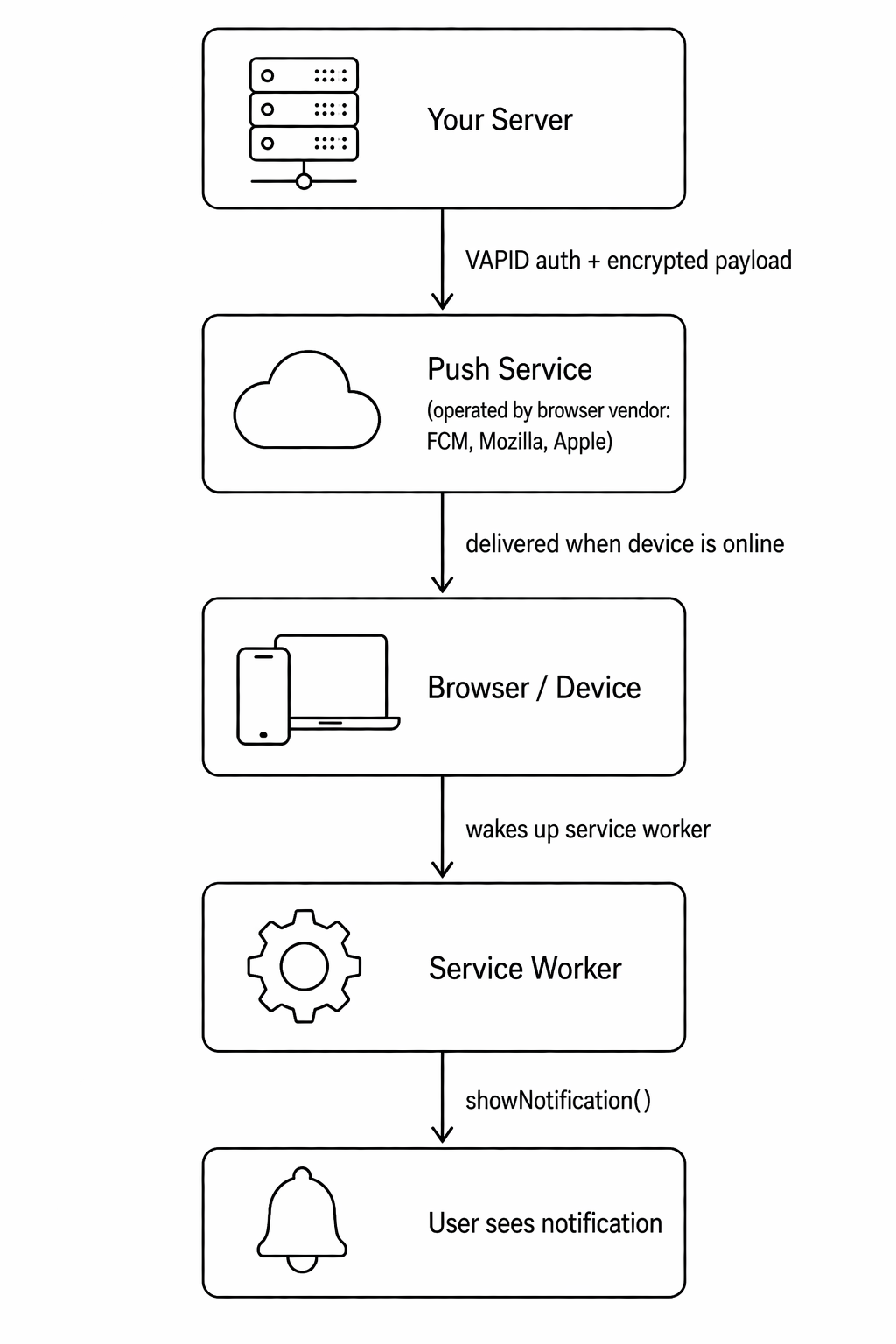
Your server never communicates directly with the device. It sends to the push service, which queues and delivers the message. This is why push works even when the user is not actively browsing.
Background Sync
Background Sync solves a specific and frustrating problem: the user submits a form or sends a message, but their connection drops at that exact moment. Without background sync, the request fails silently and the user loses their work.
With background sync, the service worker queues the request and retries it automatically when connectivity is restored, even if the user has closed your app.
Registering a Sync
// main.js

async function sendMessageWithBackgroundSync(message) {
  // Save the message to IndexedDB first
  await saveToIndexedDB('outbox', message);

  // Register a sync event
  const registration = await navigator.serviceWorker.ready;
  await registration.sync.register('sync-outbox');

  console.log('Message queued for background sync');
}
Handling Sync in the Service Worker
// sw.js

self.addEventListener('sync', (event) => {
  if (event.tag === 'sync-outbox') {
    event.waitUntil(flushOutbox());
  }
});

async function flushOutbox() {
  const messages = await getAllFromIndexedDB('outbox');

  for (const message of messages) {
    try {
      const response = await fetch('/api/messages', {
        method: 'POST',
        headers: { 'Content-Type': 'application/json' },
        body: JSON.stringify(message),
      });

      if (response.ok) {
        await removeFromIndexedDB('outbox', message.id);
      }
    } catch (error) {
      // Network still down: throw to signal the sync should retry
      throw error;
    }
  }
}
If flushOutbox() throws, the browser schedules another retry. The retry interval increases exponentially, and the browser will eventually give up after several hours. This is the right behavior: you don't want to retry a failed message forever.
Periodic Background Sync
A newer API, Periodic Background Sync, lets your service worker run on a schedule to refresh content, even while the app is closed. Think: a news app that pre-fetches articles every morning so they are ready when you open the app.
// main.js

async function registerPeriodicSync() {
  const registration = await navigator.serviceWorker.ready;

  const status = await navigator.permissions.query({
    name: 'periodic-background-sync',
  });

  if (status.state === 'granted') {
    await registration.periodicSync.register('refresh-content', {
      minInterval: 24 * 60 * 60 * 1000, // once per day at minimum
    });
  }
}
// sw.js

self.addEventListener('periodicsync', (event) => {
  if (event.tag === 'refresh-content') {
    event.waitUntil(refreshCachedContent());
  }
});

async function refreshCachedContent() {
  const cache = await caches.open('dynamic-v1');
  const urls = ['/api/posts', '/api/featured'];

  await Promise.all(
    urls.map(async (url) => {
      const response = await fetch(url);
      if (response.ok) cache.put(url, response);
    })
  );
}
The browser controls the actual schedule. It considers battery level, network conditions, and how often the user visits your app before deciding when to run. The minInterval is a hint, not a guarantee.
Workbox: The Production Tool
Writing service worker code by hand is educational but error-prone in production. Google's Workbox library provides battle-tested implementations of all the caching strategies, plus tooling to generate the app shell file list automatically.
Workbox with Vite
// vite.config.js
import { VitePWA } from 'vite-plugin-pwa';

export default {
  plugins: [
    VitePWA({
      registerType: 'autoUpdate',
      workbox: {
        // Pre-cache all build output
        globPatterns: ['**/*.{js,css,html,ico,png,svg,woff2}'],

        // Runtime caching rules
        runtimeCaching: [
          {
            // API calls: network first
            urlPattern: /^https:\/\/yourapp\.com\/api\//,
            handler: 'NetworkFirst',
            options: {
              cacheName: 'api-cache',
              expiration: { maxEntries: 100, maxAgeSeconds: 3600 },
              networkTimeoutSeconds: 5,
            },
          },
          {
            // Images: stale while revalidate
            urlPattern: /\.(?:png|jpg|jpeg|svg|gif|webp)$/,
            handler: 'StaleWhileRevalidate',
            options: {
              cacheName: 'image-cache',
              expiration: { maxEntries: 60, maxAgeSeconds: 30 * 24 * 3600 },
            },
          },
          {
            // Google Fonts: cache first (they use content hashes)
            urlPattern: /^https:\/\/fonts\.(googleapis|gstatic)\.com\//,
            handler: 'CacheFirst',
            options: {
              cacheName: 'font-cache',
              expiration: { maxAgeSeconds: 365 * 24 * 3600 },
            },
          },
        ],
      },
      manifest: {
        name: 'Clarity App',
        short_name: 'Clarity',
        theme_color: '#1e3a5f',
        icons: [
          { src: '/icons/icon-192x192.png', sizes: '192x192', type: 'image/png' },
          { src: '/icons/icon-512x512.png', sizes: '512x512', type: 'image/png' },
        ],
      },
    }),
  ],
};
Workbox also provides expiration settings to limit cache size and age: maxEntries caps how many responses are stored, and maxAgeSeconds evicts responses older than the threshold. Without these limits, your app's cache can grow unbounded on users' devices.
Auditing Your PWA with Lighthouse
Google's Lighthouse tool (built into Chrome DevTools) is the standard way to audit a PWA. It checks your manifest, service worker, HTTPS, and performance, giving you a score and specific action items.
Run it from Chrome DevTools > Lighthouse > Generate report.
A fully installable PWA passes these Lighthouse checks:
PWA Installability Checklist:
  [x] Served over HTTPS
  [x] Has a registered service worker
  [x] Has a web app manifest with:
      [x] name or short_name
      [x] icons (192px and 512px)
      [x] start_url
      [x] display: standalone, fullscreen, or minimal-ui
  [x] Service worker responds to fetch events
  [x] Manifest's start_url responds with 200 when offline

PWA Best Practices:
  [x] Has a <meta name="theme-color" /> tag
  [x] Has a <meta name="viewport" /> tag
  [x] Page loads on slow 3G in under 10 seconds
  [x] Each page has a unique URL
From the command line:
# Install Lighthouse CLI
npm install -g lighthouse

# Run a PWA audit
lighthouse https://yourapp.com --only-categories=pwa --output=html --output-path=./report.html

# Open the report
open report.html
Storage: Where PWAs Keep Data
Service workers have access to several storage APIs for persisting data on the device:
| API | Best For | Accessible From |
|---|---|---|
Cache Storage (caches.open()) | Network responses (HTML, CSS, JSON) | SW + Page |
| IndexedDB | Structured app data (user content, outbox queue) | SW + Page |
| localStorage | Simple key-value (small settings) | Page only, NOT SW. Synchronous. |
| sessionStorage | Tab-scoped temporary state | Page only, NOT SW |
For service worker code, you have two choices: Cache Storage for network responses and IndexedDB for application data. localStorage is synchronous and is not available in service workers at all.
Checking Available Storage
The Storage Manager API tells you how much space your app is using and the browser's estimate of how much is available:
// main.js

async function checkStorageQuota() {
  if ('storage' in navigator && 'estimate' in navigator.storage) {
    const { usage, quota } = await navigator.storage.estimate();
    const usedMB = (usage / 1024 / 1024).toFixed(2);
    const quotaMB = (quota / 1024 / 1024).toFixed(2);
    console.log(`Using ${usedMB} MB of ${quotaMB} MB`);
  }
}
Browsers can evict cache storage under storage pressure. To opt your app's storage into "persistent" mode (not evicted without user approval):
async function requestPersistentStorage() {
  if (navigator.storage && navigator.storage.persist) {
    const granted = await navigator.storage.persist();
    console.log('Persistent storage granted:', granted);
  }
}
Common PWA Pitfalls
1. Caching API Responses That Contain User Data
Never cache responses that contain user-specific data (JWT tokens, personal data) in a shared cache. Use Cache-Control: private on the server for these responses, and check for it in your service worker:
// sw.js
function isCacheable(response) {
  const cacheControl = response.headers.get('Cache-Control') ?? '';
  return !cacheControl.includes('no-store') && !cacheControl.includes('private');
}
2. Not Versioning Your Cache
If you never change the cache name, users on old versions of your app will keep serving stale files forever. Always increment the cache version when you deploy:
// Wrong: cache never changes
const CACHE = 'my-cache';

// Right: version matches your deployment
const CACHE = 'app-shell-v14';
3. The Infinite Loop Trap
If your service worker fetches its own URL (e.g., a request to /sw.js goes through the fetch handler), you can create an infinite loop. Always skip service worker requests:
// sw.js
self.addEventListener('fetch', (event) => {
  if (event.request.url.includes('/sw.js')) return;
  // ... handle other requests
});
4. Serving Stale HTML That References Missing Assets
If you cache an old index.html that references /app.abc123.js, but the user's app shell cache only has /app.def456.js, the page will fail to load. The App Shell pattern solves this: always pre-cache HTML and its exact asset versions together under the same cache version name.
5. Not Handling the Update Flow
When you deploy a new version, users with the old service worker installed won't see updates until they close and reopen all tabs. Consider showing an "Update available" banner and prompting users to refresh:
// main.js

const registration = await navigator.serviceWorker.register('/sw.js');

registration.addEventListener('updatefound', () => {
  const newWorker = registration.installing;

  newWorker.addEventListener('statechange', () => {
    if (newWorker.state === 'installed' && navigator.serviceWorker.controller) {
      // A new version is waiting: show an update banner
      showUpdateBanner(() => {
        newWorker.postMessage({ type: 'SKIP_WAITING' });
        window.location.reload();
      });
    }
  });
});
// sw.js
self.addEventListener('message', (event) => {
  if (event.data?.type === 'SKIP_WAITING') {
    self.skipWaiting();
  }
});
PWA Capabilities by Platform
Browser and OS support for PWA APIs is not uniform. Here is the current state:
Feature                     Chrome  Firefox  Safari  Edge
                            (Android/Desktop)       (iOS 16.4+)
---------------------------------------------------------------
Service Workers             Yes     Yes      Yes     Yes
Cache API                   Yes     Yes      Yes     Yes
Web App Manifest            Yes     Yes      Yes     Yes
Install prompt              Yes     No       No      Yes
Push Notifications          Yes     Yes      Yes*    Yes
Background Sync             Yes     No       No      Yes
Periodic Background Sync    Yes     No       No      Yes
Badging API                 Yes     No       No      Yes
File System Access API      Yes     No       No      Yes
Web Share API               Yes     No       Yes     Yes

* iOS Push Notifications require iOS 16.4+ and the app must be installed
iOS Safari added web push support in iOS 16.4 (March 2023), but it only works for installed PWAs, not for pages open in the browser. The user must first "Add to Home Screen" before push notifications will arrive.
This is why the iOS install prompt UI (guiding users to tap "Share > Add to Home Screen") is important for any app that wants to send push notifications to iPhone users.
Summary: Building a PWA Checklist
Use this checklist when shipping a PWA to production:
FOUNDATION
  [ ] Site is served over HTTPS
  [ ] manifest.json is linked in every HTML page
  [ ] Service worker is registered
  [ ] An /offline.html fallback page exists

MANIFEST
  [ ] name and short_name set
  [ ] start_url includes analytics parameter (?source=pwa)
  [ ] display: "standalone"
  [ ] theme_color and background_color set
  [ ] 192x192 and 512x512 icons provided
  [ ] Maskable icon variants provided

SERVICE WORKER
  [ ] App shell pre-cached at install time
  [ ] Cache versioned and old caches cleaned up on activate
  [ ] Caching strategy chosen per resource type
  [ ] POST requests and cross-origin requests skipped
  [ ] Cache size limited with expiration rules
  [ ] Update flow handled (update banner + skipWaiting)

INSTALLATION
  [ ] beforeinstallprompt captured and deferred
  [ ] Install UI shown at appropriate moment
  [ ] iOS "Add to Home Screen" instructions shown for Safari users
  [ ] appinstalled event tracked in analytics

PUSH NOTIFICATIONS (if using)
  [ ] VAPID keys generated
  [ ] Permission requested after user action
  [ ] Subscription sent to server
  [ ] Notification click opens the right URL
  [ ] Subscription expiry (410) handled on server

AUDITING
  [ ] Lighthouse PWA audit passes
  [ ] Tested offline in DevTools Network panel
  [ ] Tested install flow on Android Chrome
  [ ] Tested on iOS Safari (16.4+)
What to Explore Next
PWAs open the door to a broader set of browser capabilities that are evolving rapidly:
- Web Share API: let users share content to other apps natively
- Web Bluetooth and Web USB: connect to hardware devices from the browser
- File System Access API: read and write files on the user's local filesystem
- Screen Wake Lock API: prevent the screen from sleeping during active use (maps, recipes, workouts)
- Badging API: show a notification count on the app icon in the taskbar
- Project Fugu: Google's initiative to close the remaining gap between web and native capabilities
The web platform is closing the gap with native faster than ever. PWAs are no longer a compromise, they are a genuinely competitive choice.
Thanks for reading!